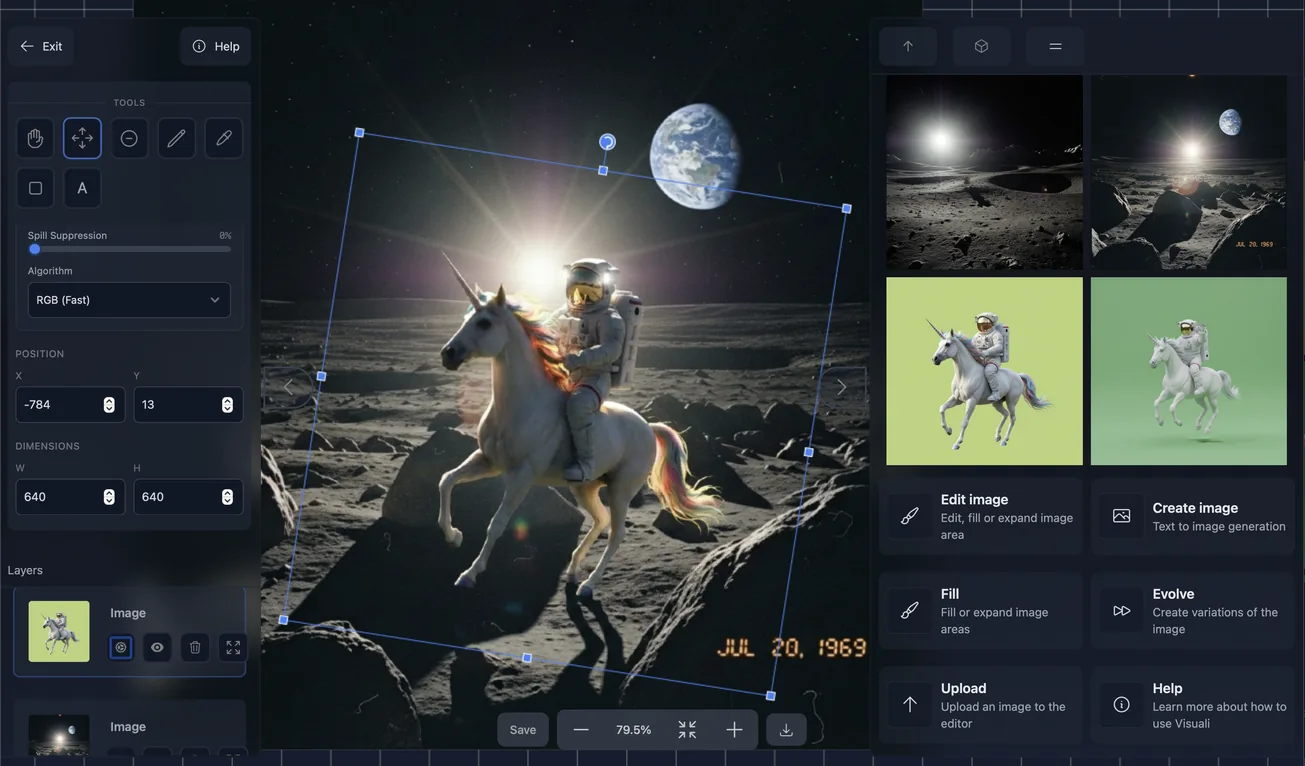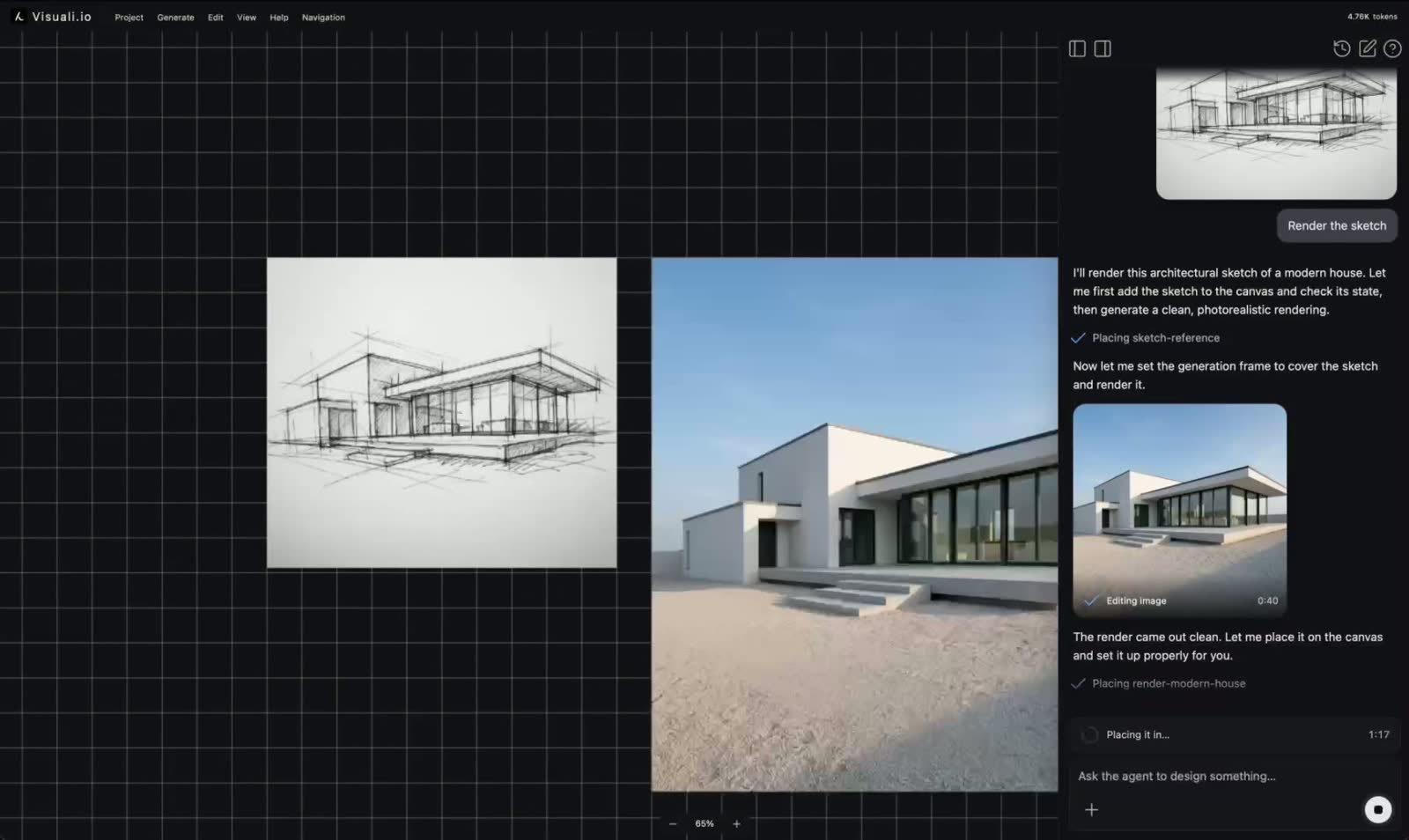
This is the biggest set of upgrades to the Visuali editor yet. The last update, back in December, brought background removal and on-canvas resizing. This time, every part of the layered workspace has been upgraded: the layers themselves, drawing and text, compositing, exporting, and how it all runs on phones and tablets.
Here's what's been upgraded:
- An upgraded layer system with groups and multi-select, so you can organize elements and move them together
- Draw freely, add text with real fonts, and erase with a dedicated eraser
- Drag any image onto the canvas at its full resolution
- Three clear modes for working: Create, Edit, and Export
- Edit with up to six reference images at once
- More AI models to generate and edit with
- A redesigned export panel with PNG, JPEG, background options, and file size estimates
- A visual project browser with real thumbnails and a searchable image library
- A full mobile and touch experience
Everything on the canvas is a layer
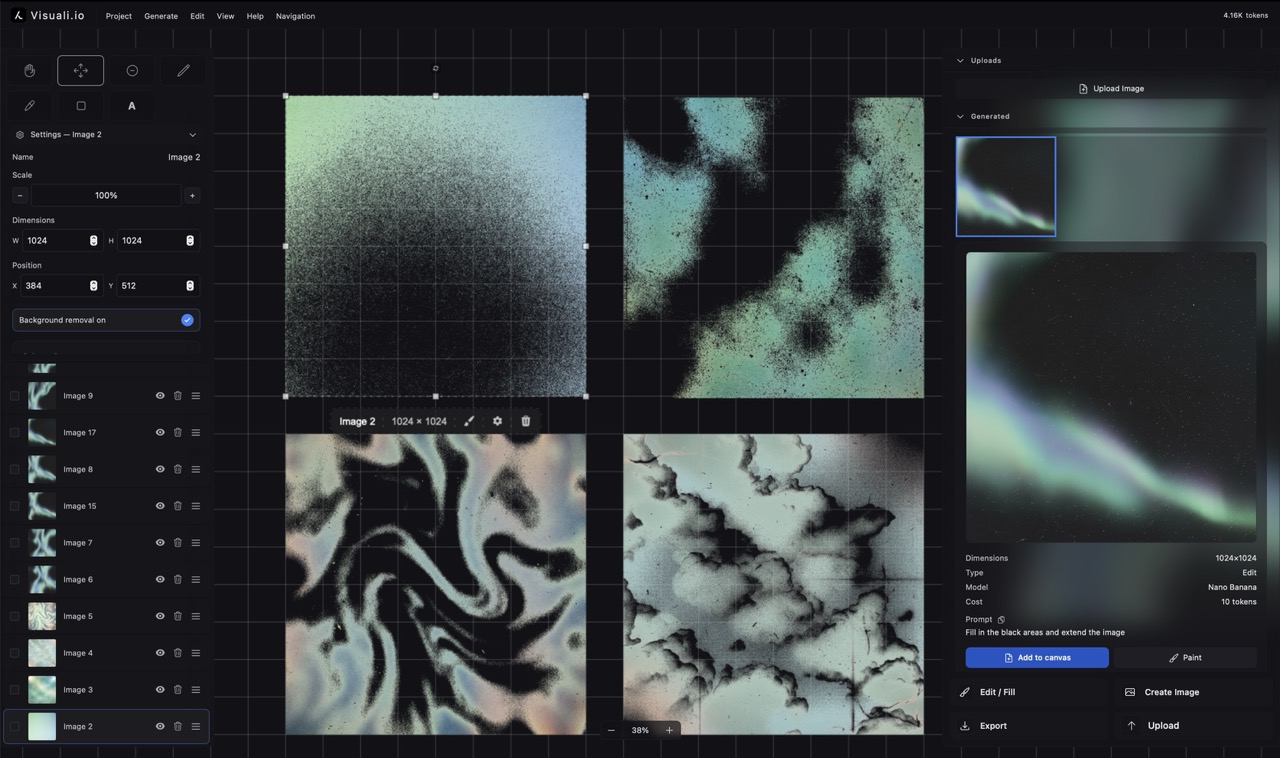
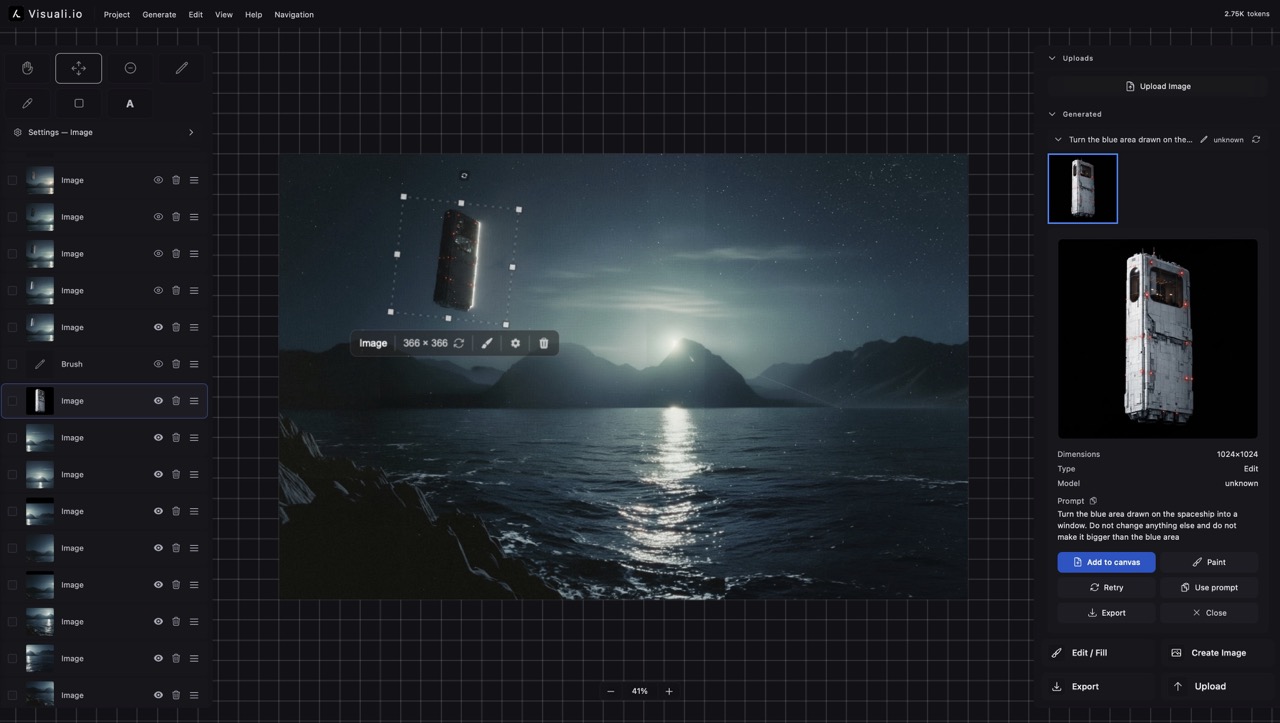
Every brush stroke, shape, image, and block of text lives on its own layer. Select one and you'll see a visual outline on the canvas along with its details in the sidebar, where you can rename it, recolor it, set an exact width and height, or move it forward and back in the stack.
The layer system has been upgraded with groups and multi-select: select several layers at once, group them, and move or transform them together. Hide the layers you're not working on, delete the ones you don't need, and come back later to change a single element without redoing the rest. Editing stays nondestructive, so undo and redo always have you covered.
Draw, type, and erase on the canvas
The canvas tools have been upgraded across the board:
- A text tool that drops a type box wherever you click, with a choice of fonts, sizes, and colors. Hit Enter and it becomes a text layer you can move, scale, and rotate.
- A dedicated eraser with its own size, kept separate from the brush, so each tool remembers the size you set.
- A blend brush for mixing image areas together, with sliders for size and strength.
- A color picker and pipette for matching colors already on the canvas.
Brush strokes appear as you draw, and a size slider with a live number sits next to each tool.
A clearer way to generate and edit
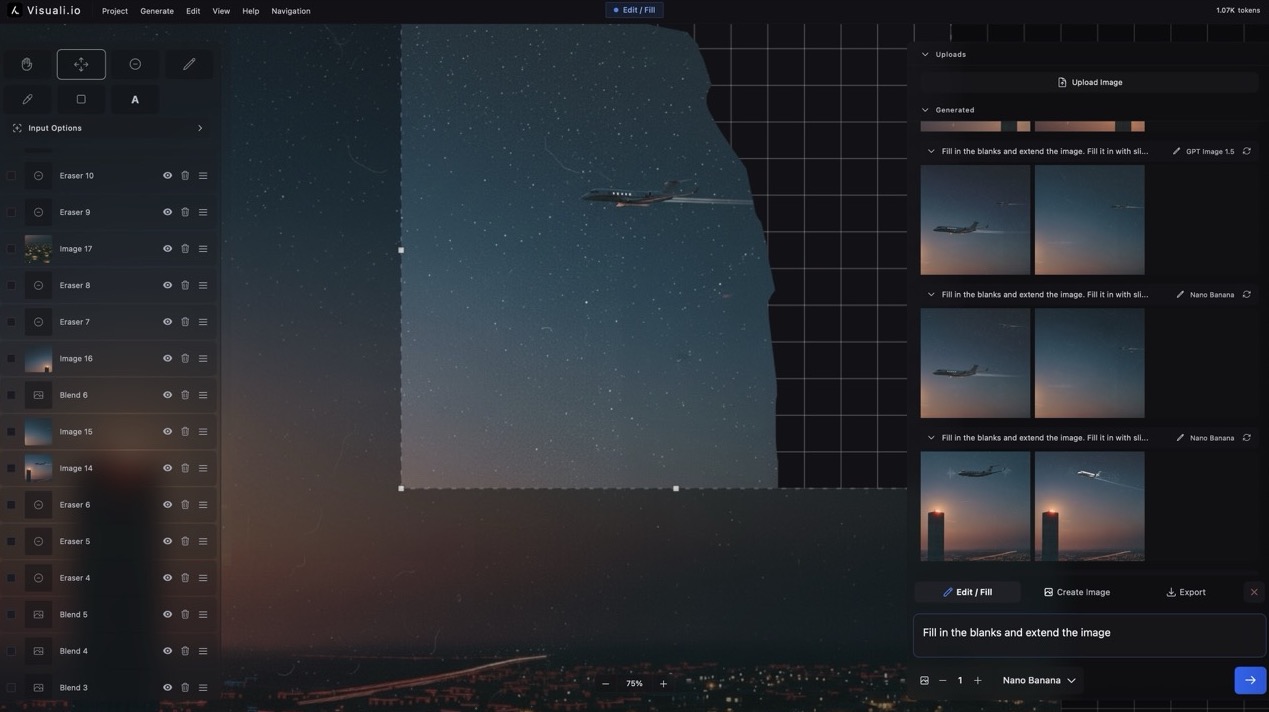
Generating and editing now run through three modes you pick in the sidebar: Create, Edit, and Export.
In Create and Edit, a frame appears on the canvas to mark the area the AI works with. Drag its handles to set the exact size and shape, or use the aspect ratio presets and pixel fields in the options panel. Select an existing image and start an edit, and the frame snaps around it automatically, so there's no lining things up by hand. In Edit mode, everything outside the frame dims so you can see precisely what gets sent to the model.
You can also give the model up to six reference images in a single edit. Add a subject, a background, and a style reference together, and it uses all of them at once. Pick the inputs straight from your layers or the side panel.
The model lineup keeps growing as new AI models are released, with recent additions including GPT Image 2 for both generating and editing.
Export exactly the part you want
Export is now its own mode with its own panel. Position the export frame over any part of your canvas, or use Fit to Canvas to wrap it around your artwork for you, then download just that area. Export sizes are no longer tied to the generation limits, so you can save a small crop or a large finished piece at its true resolution.
The panel lets you:
- Switch between PNG and JPEG, with a quality slider for JPEG
- Set the background to black, white, a custom color, or fully transparent
- Check the estimated file size before you download
Choose a transparent background and it switches the format to PNG for you.
Your projects and image library
Projects now open in a visual browser. Each one shows a real thumbnail of its canvas, so you can tell them apart at a glance. Switch between a grid and a list, search by name, and sort by when you last worked on them. Creating, renaming, copying, and deleting all happen here, and deleting asks you to confirm first so nothing goes missing by accident.
There's also a rebuilt image library holding everything you've generated. Search it by title, prompt, or id, filter to your favorites, and open any image to see its prompt, size, and date, then rename, download, or reuse it.
Now on your phone
The editor works on phones and tablets. On a small screen it pins itself in place so the browser bar can't push the toolbar or zoom controls out of view, and the controls sit clear of the notch and home bar. Drawing with a finger works the way you'd expect, the resize and rotate handles are bigger so they're easy to grab, and pinch to zoom follows your fingers. Start something on your laptop and pick it up on your phone, since everything saves to your account.
Where to learn more
For a full walkthrough, the help page has written guides and video tutorials for every part of the editor. If you get stuck or have an idea, join our Discord or send us a message.